

Function IToR(i As Integer) As String
Dim s As String
s = "I   II  III IV  V   VI  VII VIIIIX  X   XI  XII "
IToR = Mid(s, (i - 1) * 4 + 1, 4)
End Function Private Sub cmdConvert_Click()
txtRomNum.Text = IToR(Val(txtMonth.Text))
End Sub
To create a number of letters we often use roman numerals to indicate the month of making the letter.For example, the letter number is '001/Int/III/2010' where the symbol 'III' indicates that the letter was made in March 2010.
For this we need a function that can convert an integer number from 1 to 12 into roman numerals. In the Visual Basic programming, we can easily create such a function. Well, here we'll show an example program to create such functions, as well as examples of how to use it.

So your Screen design will look like the image below:
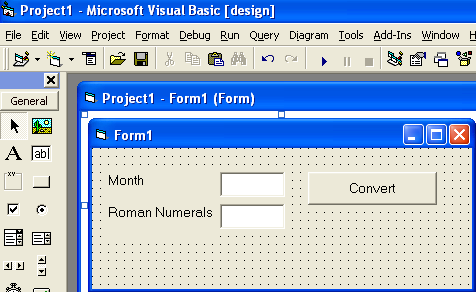
Okay, you have completed the program
Now it's time to test
Consider the results

Creating a Function to Convert Numbers into Roman Numerals
How to Convert Degree from Celcius to Another in VB 6 Programming?
In this posting I will tell you a simple VB programming tips "How to convert degree / temperature from Celcius to another one", so the base temperature is Celcius. The temperature will be converted into Fahrenheit, Rheamur and Kelvin. As we know that we have three conversion formulas are (in Celcius base):
Fahrenheit = ( Celcius X 1.8 ) + 32
Rheamur = Celcius X 0.8
Kelvin = Celcius + 273.15
How to apply these three formulas in simple VB6 programming? It's just an easy thing to do! You can do it just with a simple VB program. Please follow below instructions for your tips!
So your screen design will look like below image:

Now, let's write the program coding.
Double click any where in Form1 area to create a Sub Form_Load()
Write down below program coding in the Sub Form_Load() area
    'to clear text boxes text
Text1.Text = ""
Text2.Text = ""
Text3.Text = ""
Text4.Text = ""
Double click Command1 command button to create a Sub Command1_Click()
Write down below program coding in the Sub Command1_Click() area
    Text2.Text = Val(Text1.Text) * 1.8 + 32
Text3.Text = Val(Text1.Text) * 0.8
Text4.Text = Val(Text1.Text) + 273.15
So your program will look like the following list:
Private Sub Command1_Click()
Text2.Text = Val(Text1.Text) * 1.8 + 32
Text3.Text = Val(Text1.Text) * 0.8
Text4.Text = Val(Text1.Text) + 273.15
End Sub
Private Sub Form_Load()
'to clear text boxes text
Text1.Text = ""
Text2.Text = ""
Text3.Text = ""
Text4.Text = ""
End Sub
Now, you can test your program by clicking Start button on your VB toolbar to check whether your program is correct or not.
If the results are 59 in Text2 (Fahrenheit), 12 in Text3 (Rheamur), and 288.15 in Text4 (Kelvin), it means that your program is correct and running properly.
Look at below image for your illustration.

How do you think, it's an easy simple VB programming tips isn't it?
How to Convert Degree from Rheamur to Another in VB 6 Programming?
In the previous posting you have learnt a simple VB programming tips "How to convert degree from Fahrenheit into another one in VB6 programming". Now we will learn another simple VB programming tips "How to convert degree / temperature from Rheamur into another one", so the base degree is Rheamur, and will be converted into Celcius, Fahrenheit and Kelvin. We have three previous conversion formulas (Celcius base) as follow:
Fahrenheit = ( Celcius X 1.8 ) + 32
Rheamur = Celcius X 0.8
Kelvin = Celcius + 273.15
From these formulas, now we can generate new three other formulas (Rheamur base) as the following:
Celcius = Rheamur / 0.8
Fahrenheit = ( ( Rheamur / 0.8 ) X 1.8 ) + 32
Kelvin = ( Rheamur / 0.8 ) + 273.15
Now, let's implement above formulas into a simple VB6 programming. Let's go on to the following simple VB programming tips!
So your screen design should look like below image:

'to clear the content of text boxes
Text1.Text = ""
Text2.Text = ""
Text3.Text = ""
Text4.Text = ""
'conversion process
'Text1 represents Rheamur
'Text2 represents Celcius
'Text3 represents Fahrenheit
'Text4 represents Kelvin
Text2.Text = Val(Text1.Text) / 0.8
Text3.Text = ((Val(Text1.Text) / 0.8) * 1.8) + 32
Text4.Text = (Val(Text1.Text) / 0.8) + 273.15
So your program will look like below listing:
Private Sub Command1_Click()
'conversion process
'Text1 represents Rheamur
'Text2 represents Celcius
'Text3 represents Fahrenheit
'Text4 represents Kelvin
Text2.Text = Val(Text1.Text) / 0.8
Text3.Text = ((Val(Text1.Text) / 0.8) * 1.8) + 32
Text4.Text = (Val(Text1.Text) / 0.8) + 273.15
End Sub
Private Sub Form_Load()
'to clear the content of text boxes
Text1.Text = ""
Text2.Text = ""
Text3.Text = ""
Text4.Text = ""
End Sub
Ok, your program's finish. Test your program by clicking Start button on your VB toolbar to know whether your program working properly or not.
If the results are 100 in Text2 (Celcius), 212 in Text3 (Fahrenheit), and 373.15 in Text4 (Kelvin), it means that your program is correct and working properly.
Look at below image for your illustration.

It is very easy and very simple isn't it? Would you like to try it? Ok, in the next posting I'll write another simple tips with VB6 programming. See you in the next posting!
How to Set Object Properties at Run Time in VB6?
In the previous posting you have learnt how to set object properties at design time, by clicking the object you want, then change/set the value of property in the properties window. In this posting I'll write how to set/change property value at run time (when program running). And also I'll give you a sample program (code).
Below is the syntax how to set an object property at run time:
Object.Property = Expression
For example:
Below statement will set Caption of lblName with "John Smith" at run time.
lblName.Caption = "John Smith"
However not all object properties can be set their values at run time, because some object properties can be set just at design time. In the next posting maybe I'll write lists of which object properties that can be set just at design time, which ones that can be set just at run time, and which ones that can be set both at design time and run time.
How to Display Images in a Folder with VB6 Program ?

In this posting I will write a Sample of Simple VB6 program to display images in a directory of your computer. To display image in VB6 programming you can use LoadPicture statement. The format of statement is:
LoadPicture (Path\FileName)
For example:
LoadPicture ("Image01.jpg") -> display image named Image01.jpg in the current folder (the folder of image and the program is the same)
LoadPicture ("d:\MyPicture\Image02.bmp") -> display image named Image02.bmp that stored in folder MyPicture in drive d:
To make a VB6 program application like the above illustration you can follow below VB6 Programming tips.
In this case assumed that you have some images file (with extention .jpg or .bmp) that stored in directory D:\MyPicture.
Now you have to create a screen design like below image:
To create the screen design, please follow below steps:
Ok, program interface already done. Now the time to write code statements to functionate the controls, so the program can work. Dir1.Path = Drive1.Drive
File1.Path = Dir1.Path File1.Path = Dir1.Path
On Error GoTo ErrHandle
Image1.Picture = LoadPicture(File1.Path & "/" & File1.FileName)
Exit Sub
ErrHandle:
MsgBox "Invalid Image display"
Resume Next
So your Program coding will look like below listing:Private Sub Dir1_Change()
File1.Path = Dir1.Path
End SubPrivate Sub Drive1_Change()
  Dir1.Path = Drive1.Drive
  File1.Path = Dir1.Path
End SubPrivate Sub File1_Click()
    On Error GoTo ErrHandle
   Image1.Picture = LoadPicture(File1.Path & "/" & File1.FileName)
   Exit Sub

ErrHandle:
    MsgBox "Invalid Image display"
    Resume Next
End Sub
Now the time to test your program, follow below tips:
Your program should like the illustration on the top of this posting, however the image you display depend on the image you have and select.
Select Case...End Select - VB6 Sample Program Part 2
This posting is continuation of previous posting "Select Case...End Select - VB6 Sample Program Part 1". In the previous posting you have designed a program interface like below image, and you have saved it. Select Case Val(txtSalQty.Text) Private Sub cmdCalBonus_Click()
Now, let's writing the program coding for the above program design.
At the end, your program will look like below listing:
Case 1 To 2
txtBonus.Text = "2%"
Case 3, 4
txtBonus.Text = "3%"
Case 5 To 6
txtBonus.Text = "4.5%"
Case 7 To 8
txtBonus.Text = "6.5%"
Case 9
txtBonus.Text = "10%"
Case Else
txtBonus.Text = "15%"
End Select
txtBonusAmt.Text = Val(txtSalQty.Text) * Val(txtPriceUnit.Text) * _
Val(Left(txtBonus.Text, Len(txtBonus.Text) _
- 1)) / 100
Let's test your program to check whether it's correct or not.
    Select Case Val(txtSalQty.Text)
        Case 1 To 2
            txtBonus.Text = "2%"
        Case 3, 4
            txtBonus.Text = "3%"
        Case 5 To 6
            txtBonus.Text = "4.5%"
        Case 7 To 8
            txtBonus.Text = "6.5%"
        Case 9
            txtBonus.Text = "10%"
        Case Else
            txtBonus.Text = "15%"
    End Select
    txtBonusAmt.Text = Val(txtSalQty.Text) * Val(txtPriceUnit.Text) * _
                       Val(Left(txtBonus.Text, Len(txtBonus.Text) _
                       - 1)) / 100
End Sub
According to the Bonus Table if Sales Quantity = 5, so the Bonus Percentage should equal to 4.5%. So the Bonus Amount = 5 X 100 X 4.5 / 100. And the result is 22.5. So your program should like below screenshot.
Now I'll explain how the program works. txtBonusAmt.Text = Val(txtSalQty.Text) * Val(txtPriceUnit.Text) * _Mybe you think that this is a complex statement. But in fact it's just a simple statement.
Val(Left(txtBonus.Text, Len(txtBonus.Text) _
- 1)) / 100
Val(txtSalQty.Text) convert text "5" into number 5
Val(txtPriceUnit.Text) convert text "100" into number 100
Because txtBonus.Text = "4.5%" (this is a text) so:
Len(txtBonus.Text) will return 4, and Len(txtBonus.Text) - 1 will return 3
Left(txtBonus.Text, Len(txtBonus.Text) - 1) equals to Left("4.5%",4-1) will return "4.5"
Then Val(Left(txtBonus.Text, Len(txtBonus.Text) - 1)) equal to Val("4.5") will return number 4.5
So the above formula will equal to:
txtBonusAmt.Text = Val("5")*Val("100")*Val(Left("4.5%",Len("4.5%")-1))/100
<=> txtBonusAmt.Text = 5 * 100 * 4.5 / 100
<=> txtBonusAmt.Text = 22.5
Select Case End Select - VB6 Sample Program Part 1

In this posting I'll write a sample of simple VB6 program that using Select Case..End Select control structure. However this program also using several VB6 functions like Val() (to convert text into number so can be calculated), Len() (to get the length of a text) and Left() (to pick up a part from the left side of a text).
The scenario of the program is as the following: Sales Quantity = 1 - 2 -> Bonus = 2%
Sales Quantity = 3 - 4 -> Bonus = 3%
Sales Quantity = 5 - 6 -> Bonus = 4.5%
Sales Quantity = 7 - 8 -> Bonus = 6.5%
Sales Quantity = 9 -> Bonus = 10%
Sales Quantity = 10 or more -> Bonus = 15%
The screen design of the program is like below screenshot.
Now, let's design the program first (create screen interface).
Look at image above, your screen design should like that.
Ok, now the time to save your work (your program) in order you can edit it next time (this program will be used in the next posting). Here it is tips to save your VB6 program:
Note: The extention .vbp and .frm will automatically given by the system.
Ok, now your program has been saved. You have 2 files in your project: prjBonus.vbp and frmCalBonus.frm and you can close your VB program. I'll continue to write the program coding in the next posting.
If...Then...Else...End If Statement in VB6 - Sample Program 1
Visual Basic program application usually use If..Then..Else..End If statement. In this posting I would like to write a sample of simple program in VB6 which use If..Then..Else..End If statement with 2 conditions or more.
The syntax of the statement is the following:
If Condition-1 Then
    Statement-1
Else
    Statement-2
End If
If Condition-1 Then
    Statement-1
Else
    If Condition-2 Then
        Statement-2
    Else
        If Condition-3 Then
            Statement-3
        Else
            Statement-4
        End If
    End If
End If
Note: If the conditions are too much it is not effective if using If..Then..Else..End If statement, however it is better using Select Case..End Select statement.
The scenario of the program is as below:
Your program coding will look like the folling list:
Private Sub cmdRegister_Click()
    'recheck data validity
    If txtName.Text = "" Then
        MsgBox "You must fill in the Name first"
        Exit Sub
    End If
    If txtGender.Text = "" Then
        MsgBox "You must fill in the Gender code"
        Exit Sub
    End If
    If txtGender.Text <> "M" And txtGender.Text <> "F" Then
        MsgBox "Just 'M' or 'F' for the Gender code "
        Exit Sub
    End If
    'display greeting
    lblGreeting.Caption = "Welcome " & IIf(txtGender.Text = "M", "Mr. ", "Mrs. ") & _
    Trim(txtName.Text) & ". Thank you for joining our club."
End Sub
Private Sub Form_Load()
   lblGender.Caption = ""
   lblGreeting.Caption = ""
End Sub
Private Sub txtGender_Change()
    If txtGender.Text <> "M" And txtGender.Text <> "F" Then
        MsgBox "Invalid value, you should fill in 'M' or 'F'"
    Else
        If txtGender.Text = "M" Then
            lblGender.Caption = "Male"
        Else
            lblGender.Caption = "Female"
        End If
    End If

    If txtName.Text <> "" Then
       cmdRegister.Enabled = True
    Else
       cmdRegister.Enabled = False
    End If
End Sub
Private Sub txtName_Change()
    If txtName.Text = "" Then
        cmdRegister.Enabled = False
    Else
        If txtGender.Text = "" Then
            cmdRegister.Enabled = False
        Else
            cmdRegister.Enabled = True
        End If
    End If
End Sub
Please look at below screen shot as your illustration:

If...Then...Else...End If Statement in VB
If..Then..Else..End If statement is one of conditional statements in Visual Basic 6 Programming. The statement format is as the following:
If Condition1 ThenStatement1 will be executed if Condition1 met (the condition1 result is true value), otherwise the Statement2 will be executed.
Statement1
Else
Statement2
End If
If Condition1 ThenIf Condition1 met, the Statement1 will be executed, if Condition2 met, the Statement2 will be executed, and so on.
Statement1
Else
If Condition2 Then
Statement2
Else
If Condition3 Then
Statement3
Else
Statement4
End If
End If
End If
Note: that Statement1, Statement2 and so on may be a single statement or a block of statements (one or more statements).
Example implementation on your program as follow:
In an examination if the student get mark more than or equal to 6 he/she pass the exam, however if his/her mark is less than 6 he/she fail.
So the program coding will be like this:
If Val(txtMark.Text) >= 6 ThenLook at below image for your illustration:
lblResult.Caption = "PASS"
Else
lblResult.Caption = "FAIL"
End If

In an examination the mark will be categorized as below conditions:
Mark = 10 is Excellent
Mark >= 9 and <10 is Very Good
Mark >= 8 and < 9 is Good
Mark < 8 is Poor
So the program coding will look like below list:
If Val(txtMark.Text) < 8 ThenLook at below image for your illustration:
lblCategory.Caption = "POOR"
Else
If Val(txtMark.Text) >= 8 And Val(txtMark.Text) < 9 Then
lblCategory.Caption = "GOOD"
Else
If Val(txtMark.Text) >= 9 And Val(txtMark.Text) < 10 Then
lblCategory.Caption = "VERY GOOD"
Else
lblCategory.Caption = "EXCELLENT"
End If
End If
End If

Temperature Conversion with Multiple Base in VB6
In the earlier posting you have learnt several simple VB programming tips how to convert temperature with basis Celcius, Fahrenheit, Rheamur and Kelvin. In this posting you will learn how to make a simple application to convert temperature with multiple basis with VB6 programming. You can select the temperature basis when the program's running.
The scenario of this simple application is as follow:
Now, how to built your simple application? Let's go on to the simple VB programming tips.
First, you have to create a screen design likes below image:

How to create the screen design? Follow step by step of below instructions:
Ok, the screen design already finished. Now, what's the program coding like?
Here it is the program coding. Follow the next simple VB programming tips.
    'to add items in combo box
    cboBasis.AddItem "Celcius"
    cboBasis.AddItem "Fahrenheit"
    cboBasis.AddItem "Rheamur"
    cboBasis.AddItem "Kelvin"
    'call procedure ConvPro
    ConvPro
    'call procedure ConvPro
    ConvPro
   Private Sub ConvPro()
     If TxtTemp.Text = "" Then
        'clear the text of text boxes
        TxtCel.Text = ""
        TxtFah.Text = ""
        TxtRhe.Text = ""
        TxtKel.Text = ""
        Exit Sub
     End If

     'if Basis is blank then fill in with "Celcius" as default
     If cboBasis.Text = "" Then
        cboBasis.Text = "Celcius"
     End If
     Select Case cboBasis.Text
       Case "Celcius"
          GoTo ConvCel
       Case "Fahrenheit"
          GoTo ConvFah
       Case "Rheamur"
          GoTo ConvRhe
       Case Else
          GoTo ConvKel
     End Select

   'conversion for celcius basis
   ConvCel:
      TxtCel.Text = Val(TxtTemp.Text)
      TxtFah.Text = Val(TxtTemp.Text) * 1.8 + 32
      TxtRhe.Text = Val(TxtTemp.Text) * 0.8
      TxtKel.Text = Val(TxtTemp.Text) + 273.15
      Exit Sub

   'conversion for fahrenheit basis
   ConvFah:
      TxtFah.Text = Val(TxtTemp.Text)
      TxtCel.Text = (Val(TxtTemp.Text) - 32) / 1.8
      TxtRhe.Text = ((Val(TxtTemp.Text) - 32) / 1.8) * 0.8
      TxtKel.Text = ((Val(TxtTemp.Text) - 32) / 1.8) + 273.15
      Exit Sub

   'conversion for rheamur basis
   ConvRhe:
      TxtRhe.Text = Val(TxtTemp.Text)
      TxtCel.Text = Val(TxtTemp.Text) / 0.8
      TxtFah.Text = ((Val(TxtTemp.Text) / 0.8) * 1.8) + 32
      TxtKel.Text = (Val(TxtTemp.Text) / 0.8) + 273.15
      Exit Sub

   'conversion for kelvin basis
   ConvKel:
      TxtKel.Text = Val(TxtTemp.Text)
      TxtCel.Text = Val(TxtTemp.Text) - 273.15
      TxtRhe.Text = (Val(TxtTemp.Text) - 273.15) * 0.8
      TxtFah.Text = ((Val(TxtTemp.Text) - 273.15) * 1.8) + 32
   End Sub
So your program will look like below listing:
   Private Sub ConvPro()
      If TxtTemp.Text = "" Then
         'clear text of text boxex
         TxtCel.Text = ""
         TxtFah.Text = ""
         TxtRhe.Text = ""
         TxtKel.Text = ""
         Exit Sub
      End If
      'if Basis is blank then fill in with "Celcius"
      If cboBasis.Text = "" Then
         cboBasis.Text = "Celcius"
      End If
      Select Case cboBasis.Text
         Case "Celcius"
            GoTo ConvCel
         Case "Fahrenheit"
            GoTo ConvFah
         Case "Rheamur"
            GoTo ConvRhe
         Case Else
            GoTo ConvKel
      End Select

   'conversion for celcius basis
   ConvCel:
         TxtCel.Text = Val(TxtTemp.Text)
         TxtFah.Text = Val(TxtTemp.Text) * 1.8 + 32
         TxtRhe.Text = Val(TxtTemp.Text) * 0.8
         TxtKel.Text = Val(TxtTemp.Text) + 273.15
         Exit Sub

   'conversion for fahrenheit basis
   ConvFah:
         TxtFah.Text = Val(TxtTemp.Text)
         TxtCel.Text = (Val(TxtTemp.Text) - 32) / 1.8
         TxtRhe.Text = ((Val(TxtTemp.Text) - 32) / 1.8) * 0.8
         TxtKel.Text = ((Val(TxtTemp.Text) - 32) / 1.8) + 273.15
         Exit Sub

   'conversion for rheamur basis
   ConvRhe:
         TxtRhe.Text = Val(TxtTemp.Text)
         TxtCel.Text = Val(TxtTemp.Text) / 0.8
         TxtFah.Text = ((Val(TxtTemp.Text) / 0.8) * 1.8) + 32
         TxtKel.Text = (Val(TxtTemp.Text) / 0.8) + 273.15
         Exit Sub

   'conversion for kelvin basis
   ConvKel:
         TxtKel.Text = Val(TxtTemp.Text)
         TxtCel.Text = Val(TxtTemp.Text) - 273.15
         TxtRhe.Text = (Val(TxtTemp.Text) - 273.15) * 0.8
         TxtFah.Text = ((Val(TxtTemp.Text) - 273.15) * 1.8) + 32

   End Sub


   Private Sub cboBasis_Click()
      'call procedure ConvPro
      ConvPro
   End Sub


   Private Sub Form_Load()
      'to add items in combo box
      cboBasis.AddItem "Celcius"
      cboBasis.AddItem "Fahrenheit"
      cboBasis.AddItem "Rheamur"
      cboBasis.AddItem "Kelvin"
   End Sub


   Private Sub TxtTemp_Change()
      'call procedure ConvPro
      ConvPro
   End Sub
What happen? The conversion should automatically occurs, so the results appear on the each text box. Look at below image for your illustration. Your program should look like it.

How to Convert Degree from Kelvin to Another in VB 6 Programming?
In this posting I will write a simple VB programming tips "How to convert degree from Kelvin into Celcius, Fahrenheit and Rheamur" using VB6 programming. Let's go on to the simple tips. Your program will look like below coding:
We have three previous conversion formulas (Celcius base) as follow in the erlier postings:
Fahrenheit = ( Celcius X 1.8 ) + 32
Rheamur = Celcius X 0.8
Kelvin = Celcius + 273.15
From previous formulas we got another three formulas with Kelvin degree basis as the following:
Celcius = Kelvin - 273.15
Fahrenheit = ( ( Kelvin - 273.15 ) X 1.8 ) + 32
Rheamur = ( Kelvin - 273.15 ) X 0.8
Let's implement these formulas in a simple VB6 programming.
First you should create a screen design like below image (just a simple screen design):
How to create this screen design? Follow below instructions for the tips.
'conversion process
txtCelcius.Text = Val(txtKelvin.Text) - 273.15
txtRheamur.Text = (Val(txtKelvin.Text) - 273.15) * 0.8
txtFahrenheit.Text = ((Val(txtKelvin.Text) - 273.15) * 1.8) + 32
Private Sub cmdConvert_Click()
'conversion process
txtCelcius.Text = Val(txtKelvin.Text) - 273.15
txtRheamur.Text = (Val(txtKelvin.Text) - 273.15) * 0.8
txtFahrenheit.Text = ((Val(txtKelvin.Text) - 273.15) * 1.8) + 32
End Sub
Now the time to test your program.
Look at below image, and your result should look like it.
What about your idea? Any comment?
How to Convert Degree from Fahrenheit to Another in VB 6 Programming?
In the previous posting I've told you a simple VB programming tips "How to convert degree from Celcius into another one". In this posting I'll tell you a tips "How to convert degree from Fahrenheit into another one", so the base degree is Fahrenheit. It will be converted into Celcius, Rheamur and Kelvin. As we know that we have three previous conversion formulas (Celcius base): 'to clear the content of text boxes 'conversion process Private Sub Command1_Click() Private Sub Form_Load()
Fahrenheit = ( Celcius X 1.8 ) + 32
Rheamur = Celcius X 0.8
Kelvin = Celcius + 273.15
From above formulas, we are able to generate three other formulas (Fahrenheit base) as below:
Celcius = ( Fahrenheit - 32 ) / 1.8
Rheamur = ( ( Fahrenheit - 32 ) / 1.8 ) X 0.8
Kelvin = ( ( Fahrenheit - 32 ) / 1.8 ) + 273.15
Now let's implement these formulas in VB6 simple programming. Please follow below steps for your tips!
So your design will look like below image (just a simple Screen Design):
Double click any where in Form1 area to create a Sub Form_Load()
Write down below program coding in the Sub Form_Load() area
Text1.Text = ""
Text2.Text = ""
Text3.Text = ""
Text4.Text = ""
Double click Command1 command button (with caption "Convert") to create a Sub Command1_Click()
Write down below program coding in the Sub Command1_Click() area
'Text1 represents Fahrenheit
'Text2 represents Celcius
'Text3 represents Rheamur
'Text4 represents Kelvin
Text2.Text = (Val(Text1.Text) - 32) / 1.8
Text3.Text = ((Val(Text1.Text) - 32) / 1.8) * 0.8
Text4.Text = ((Val(Text1.Text) - 32) / 1.8) + 273.15
So your program should look like below listing:
'conversion process
'Text1 represents Fahrenheit
'Text2 represents Celcius
'Text3 represents Rheamur
'Text4 represents Kelvin
Text2.Text = (Val(Text1.Text) - 32) / 1.8
Text3.Text = ((Val(Text1.Text) - 32) / 1.8) * 0.8
Text4.Text = ((Val(Text1.Text) - 32) / 1.8) + 273.15
End Sub
    'to clear the content of text boxes
    Text1.Text = ""
    Text2.Text = ""
    Text3.Text = ""
    Text4.Text = ""
End Sub
Note: In this simple VB program we haven't used variables yet, but we just use controls from Toolbox. Mybe in the next program we will use variables.
Ok, your program finish. Test your program by clicking Start button on your VB toolbar to know whether your program's working properly or not.
If the results are 100 in Text2 (Celcius), 80 in Text3 (Rheamur), and 373.15 in Text4 (Kelvin), it means that your program is correct and working properly.
Look at below image for your illustration. Your program should like it.
It's an easy simple VB program isn't it? Would you like to try it?
Table of Contents
How to Automate Conversion Numbers into Letters in VB 6 Programming?
How to automate conversion numbers? In the previous posting you have learnt how to convert numbers into letters with Select Case..End Select control structure, If..Then..Else..End If control structure, and command button. The conversion will be processed after you clik command button. In this session you still learn how to convert number into letter with Select Case..End Select and If..Then..Else..End If, however you don't need a command button anymore. The conversion will automatically processed when you typing a number in the text box. How to do this? What's the program like? If Val(Text1.Text) = 0 Then Select Case Val(Text2.Text)
This is just an easy thing to do. You can use the previous program conversion number you have created. You just write down your coding in Sub Text1_Change() and Sub Text2_Change(). This two Subs that make conversion process automatically done. For detail how to do, you can follow below instructions (it's a simple VB programming tips).
1. Using if..then..else..end if control structure
Label1.Caption = "zero"
Else
If Val(Text1.Text) = 1 Then
Label1.Caption = "one"
Else
If Val(Text1.Text) = 2 Then
Label1.Caption = "two"
Else
If Val(Text1.Text) = 3 Then
Label1.Caption = "three"
Else
If Val(Text1.Text) = 4 Then
Label1.Caption = "four"
Else
If Val(Text1.Text) = 5 Then
Label1.Caption = "five"
Else
If Val(Text1.Text) = 6 Then
Label1.Caption = "six"
Else
If Val(Text1.Text) = 7 Then
Label1.Caption = "seven"
Else
If Val(Text1.Text) = 8 Then
Label1.Caption = "eight"
Else
If Val(Text1.Text) = 9 Then
Label1.Caption = "nine"
Else
If Val(Text1.Text) = 10 Then
Label1.Caption = "ten"
Else
If Val(Text1.Text) = 11 Then
Label1.Caption = "eleven"
Else
If Val(Text1.Text) = 12 Then
Label1.Caption = "twelve"
Else
If Val(Text1.Text) = 13 Then
Label1.Caption = "thirteen"
Else
If Val(Text1.Text) = 14 Then
Label1.Caption = "forteen"
Else
If Val(Text1.Text) = 15 Then
Label1.Caption = "fifteen"
Else
If Val(Text1.Text) = 16 Then
Label1.Caption = "sixteen"
Else
If Val(Text1.Text) = 17 Then
Label1.Caption = "seventeen"
Else
If Val(Text1.Text) = 18 Then
Label1.Caption = "eighteen"
Else
If Val(Text1.Text) = 19 Then
Label1.Caption = "nineteen"
Else
If Val(Text1.Text) = 20 Then
Label1.Caption = "twenty"
Else
Label1.Caption = "unrecognize number"
End If
End If
End If
End If
End If
End If
End If
End If
End If
End If
End If
End If
End If
End If
End If
End If
End If
End If
End If
End If
End If
2. Using Select Case..End Select control structure
Case 0
Label2.Caption = "zero"
Case 1
Label2.Caption = "one"
Case 2
Label2.Caption = "two"
Case 3
Label2.Caption = "three"
Case 4
Label2.Caption = "four"
Case 5
Label2.Caption = "five"
Case 6
Label2.Caption = "six"
Case 7
Label2.Caption = "seven"
Case 8
Label2.Caption = "eight"
Case 9
Label2.Caption = "nine"
Case 10
Label2.Caption = "ten"
Case 11
Label2.Caption = "eleven"
Case 12
Label2.Caption = "twelve"
Case 13
Label2.Caption = "thirteen"
Case 14
Label2.Caption = "forteen"
Case 15
Label2.Caption = "fifteen"
Case 16
Label2.Caption = "sixteen"
Case 17
Label2.Caption = "seventeen"
Case 18
Label2.Caption = "eighteen"
Case 19
Label2.Caption = "nineteen"
Case 20
Label2.Caption = "twenty"
Case Else
Label2.Caption = "unrecognize number"
End Select
You can run your program by clicking Start button on your VB toolbar to check whether your program is correct or not.
If letter "fifteen" appears in both Label1 and Label2, it means that your program is correct, and running properly.

How to Convert Numbers into Letters in VB 6 Programming?
In this posting I will tell you a simple VB programming tips how to convert numbers from 0 until 20 into letters. To the application you can use either If..Then..Else...End If or Select Case..End Select control structure. In this application just demonstrate how to use both control structures. What is the simple program like? Please look at below simple VB programming tips.
1. Using If..Then..Else..End If control structure
    If Val(Text1.Text) = 0 Then
        Label1.Caption = "zero"
    Else
    If Val(Text1.Text) = 1 Then
        Label1.Caption = "one"
    Else
    If Val(Text1.Text) = 2 Then
        Label1.Caption = "two"
    Else
    If Val(Text1.Text) = 3 Then
        Label1.Caption = "three"
    Else
    If Val(Text1.Text) = 4 Then
        Label1.Caption = "four"
    Else
    If Val(Text1.Text) = 5 Then
        Label1.Caption = "five"
    Else
    If Val(Text1.Text) = 6 Then
        Label1.Caption = "six"
    Else
    If Val(Text1.Text) = 7 Then
        Label1.Caption = "seven"
    Else
    If Val(Text1.Text) = 8 Then
        Label1.Caption = "eight"
    Else
    If Val(Text1.Text) = 9 Then
        Label1.Caption = "nine"
    Else
    If Val(Text1.Text) = 10 Then
        Label1.Caption = "ten"
    Else
    If Val(Text1.Text) = 11 Then
        Label1.Caption = "eleven"
    Else
    If Val(Text1.Text) = 12 Then
        Label1.Caption = "twelve"
    Else
    If Val(Text1.Text) = 13 Then
        Label1.Caption = "thirteen"
    Else
    If Val(Text1.Text) = 14 Then
        Label1.Caption = "forteen"
    Else
    If Val(Text1.Text) = 15 Then
        Label1.Caption = "fifteen"
    Else
    If Val(Text1.Text) = 16 Then
        Label1.Caption = "sixteen"
    Else
    If Val(Text1.Text) = 17 Then
        Label1.Caption = "seventeen"
    Else
    If Val(Text1.Text) = 18 Then
        Label1.Caption = "eighteen"
    Else
    If Val(Text1.Text) = 19 Then
        Label1.Caption = "nineteen"
    Else
    If Val(Text1.Text) = 20 Then
        Label1.Caption = "twenty"
    Else
        Label1.Caption = "unrecognize number"
    End If
    End If
    End If
    End If
    End If
    End If
    End If
    End If
    End If
    End If
    End If
    End If
    End If
    End If
    End If
    End If
    End If
    End If
    End If
    End If
    End If
2. Using select case...end select control structure
    Select Case Val(Text2.Text)
        Case 0
            Label2.Caption = "zero"
        Case 1
            Label2.Caption = "one"
        Case 2
            Label2.Caption = "two"
        Case 3
            Label2.Caption = "three"
        Case 4
            Label2.Caption = "four"
        Case 5
            Label2.Caption = "five"
        Case 6
            Label2.Caption = "six"
        Case 7
            Label2.Caption = "seven"
        Case 8
            Label2.Caption = "eight"
        Case 9
            Label2.Caption = "nine"
        Case 10
            Label2.Caption = "ten"
        Case 11
            Label2.Caption = "eleven"
        Case 12
            Label2.Caption = "twelve"
        Case 13
            Label2.Caption = "thirteen"
        Case 14
            Label2.Caption = "forteen"
        Case 15
            Label2.Caption = "fifteen"
        Case 16
            Label2.Caption = "sixteen"
        Case 17
            Label2.Caption = "seventeen"
        Case 18
            Label2.Caption = "eighteen"
        Case 19
            Label2.Caption = "nineteen"
        Case 20
            Label2.Caption = "twenty"
        Case Else
            Label2.Caption = "unrecognize number"
    End Select
You can run your program by clicking Start button on your VB toolbar to check whether your program is correct or not.
If letter "fifteen" appears in both Label1 and Label2, it means that your program is correct, and running properly.
Look at below screen shot for your illustration.

What do you think about it? It is an easy simple VB programming tips isn't it? Would you like to try?
How to Copy Image or Picture to Clipboard in VB 6 Programming?
In many VB program applications display images. And maybe you want to copy the image and paste into other office program like MS Excel, MS Word, etc. To do this thing in VB6 programming, please follow below steps of simple VB programming tips:
First, you should have a picture that will be loaded by the program. For example you have a picture or image file named Adenium.jpg, and you save your picture in a folder with name D:\MyPicture
Please look at below screen shot for your illustration.

   'Load picture into image box
   Image1.Picture = LoadPicture("D:\MyPicture\Adenium.JPG")
   'Clear clipboard first
   Clipboard.Clear
   'Load the picture from Image1 into Clipboard
   Clipboard.SetData Image1.Picture
So your program will look like the following list:
Private Sub Command1_Click()
    'Clear clipboard first
    Clipboard.Clear
    'Load the picture from Image1 into Clipboard
    Clipboard.SetData Image1.Picture
End Sub
Private Sub Form_Load()
    'Load picture into image box
    Image1.Picture = LoadPicture("D:\MyPicture\Adenium.JPG")
End Sub
Please look at below screen shot for your illustration.

To check whether your program works or not:
If your Image appears on your screen it means that your Sub Form_Load() is working.

If your picture appears on your MS Excel sheet it means that your program is working properly.


It's just a very easy thing to do, isn't it?

